Evaluating the Convert Listing Presentation Template for Professional Use
Selecting the right presentation framework is often less about aesthetic preference and more about operational efficiency. For professionals managing multiple client pitches, agency profiles, or portfolio updates, the Convert Listing Presentation Template represents a specific category of design resource: the modular master-slide system. Unlike standalone slide decks that require manual formatting for every new project, this template is engineered around a centralized architecture. Understanding its technical structure and practical applications is essential for determining whether it aligns with your current workflow or if a different solution would better serve your long-term needs.
Technical Architecture and Master Slide Dependency
The primary distinction of the Convert Listing Presentation Template lies in its reliance on Master Slides rather than individual slide formatting. In many standard templates, changing a font, color scheme, or logo placement requires editing slides one by one. This template consolidates those elements into the backend master layout. When you update a master element, the change propagates across all 35 included slides automatically. This architecture is particularly valuable for agencies or consultants who maintain strict brand guidelines across diverse projects.
However, this dependency introduces a learning curve. Users unfamiliar with PowerPoint’s Slide Master view may initially find the template restrictive. If you attempt to edit text boxes or images directly on the slide canvas without understanding the underlying master structure, you risk breaking the layout alignment. Compared to simpler, "flat" templates that allow unrestricted dragging and dropping anywhere on the canvas, Convert requires a more disciplined approach to editing. The tradeoff is clear: you sacrifice some immediate, casual flexibility in exchange for long-term consistency and faster global updates.
Vector Graphics and Scalability Considerations
A significant technical advantage within this template is the inclusion of handcrafted, pixel-perfect vector illustrations. Many presentation resources rely on rasterized PNG or JPEG graphics, which become blurry when resized or projected on high-resolution screens. Because the infographics and icons in Convert are vector-based, they remain crisp at any dimension. More importantly, they are fully editable within PowerPoint. You can ungroup these elements to change individual colors or shapes without needing external software like Adobe Illustrator.
This feature distinguishes it from templates that use flattened imagery. If your work involves frequent resizing for different aspect ratios (such as adapting a 16:9 deck for social media or print), vector assets are non-negotiable. However, be aware that complex vector groups can sometimes increase file size or cause minor rendering lag on older hardware. For most modern systems, this is negligible, but it is a factor to consider if you are working in a resource-constrained environment.
Versatility Across Business Verticals
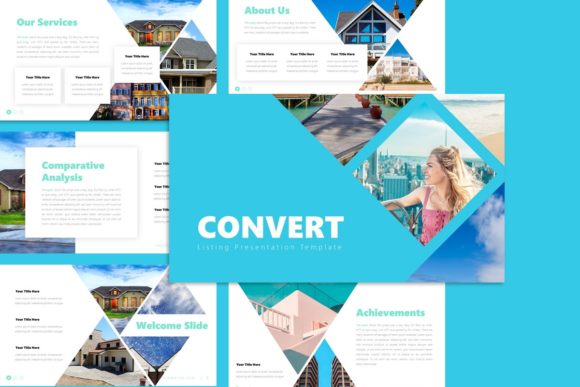
The Convert Listing Presentation Template is marketed for a broad spectrum of uses, including Creative Agencies, Corporate Profiles, Pitch Decks, and Personal Portfolios. While versatile, its utility varies significantly depending on the specific vertical. Evaluating its fit requires looking beyond the demo images to understand how the content blocks function in practice.
- Creative Agencies and Portfolios: This is arguably the strongest use case. The template includes dedicated picture placeholders designed for drag-and-drop functionality. For photographers and designers, the grid systems and image-heavy layouts reduce the time spent aligning visual assets. The minimalist aesthetic allows creative work to take precedence over decorative slide elements.
- Corporate and Business Profiles: The 35-slide count provides ample room for comprehensive company overviews, team introductions, and service breakdowns. The professional, clean typography suits B2B communications well. However, organizations requiring dense data visualization may find the pre-built infographic styles somewhat generalized. While editable, they are designed for clarity rather than complex statistical analysis.
- Startups and Pitch Decks: For early-stage fundraising, narrative flow is critical. Convert offers structured layouts for problem/solution statements and market analysis. Yet, startup founders should note that investor decks often require highly bespoke data storytelling. While this template provides a solid structural foundation, expect to customize the infographic slides heavily to match your unique metrics rather than relying solely on the pre-designed charts.
- Personal Portfolios: For freelancers, the template offers a polished alternative to building a website from scratch. It functions effectively as a downloadable PDF portfolio or a digital leave-behind. The limitation here is interactivity; unlike web-based portfolio platforms, this PPTX file does not support embedded video playback or dynamic filtering natively without additional configuration.
Comparing Workflow Efficiency Against Alternatives
When researching presentation solutions, it is helpful to compare the Convert Listing Presentation Template against other common categories of design tools. Each alternative presents distinct tradeoffs regarding speed, customization, and output quality.
Versus Custom Design Services
Hiring a designer guarantees a bespoke result tailored exactly to your brand. However, this approach is costly and slow. Revisions can take days, and future updates require re-engaging the designer. Convert serves as a middle ground: it provides professional-grade design coherence at a fraction of the cost, with immediate editability. The compromise is that your presentation will share DNA with other users of the template, though the extensive customization options mitigate this risk significantly.
Versus Cloud-Based Design Platforms
Browser-based design tools have gained popularity for their collaborative features and vast asset libraries. Compared to these platforms, Convert Listing Presentation Template offers superior offline reliability and native PowerPoint compatibility. If your organization mandates .PPTX deliverables or restricts cloud uploads due to security policies, a native PowerPoint template is often the only viable option. Conversely, if real-time multi-user collaboration is your primary requirement, cloud platforms may outperform a traditional PPTX file, which typically requires version control management via SharePoint or similar systems.
Versus Free or Generic Templates
Free templates often lack master slide integration, resulting in inconsistent formatting and broken layouts upon editing. They frequently use low-resolution raster graphics and limited slide variety. The investment in a premium resource like Convert is justified primarily by the time saved in maintenance. If you create presentations weekly, the efficiency gains from a properly structured master slide system typically offset the initial cost within the first few projects. For one-off, low-stakes presentations, however, a free alternative may suffice.
Practical Limitations and Decision Factors
No template is universally optimal. Recognizing the limitations of the Convert Listing Presentation Template prevents frustration during implementation. Prospective users should weigh the following factors before adoption.
Image Licensing and Placeholders: It is critical to understand that all images shown in the preview are for demonstration purposes only and are not included in the download. The template provides placeholders, not stock photography. You must source your own licensed imagery. Budget-conscious users should factor in the potential cost of stock photos or the time required to prepare original assets. The drag-and-drop placeholders streamline insertion, but they do not solve the content sourcing challenge.
Software Compatibility: While labeled as a PowerPoint .PPTX file, advanced features like editable vectors and master slide links perform best in desktop versions of Microsoft PowerPoint (Windows or Mac). Users relying exclusively on web-based PowerPoint, Keynote, or Google Slides may experience formatting shifts or loss of editability for specific graphic elements. Always test the file in your primary authoring environment before committing to it for a live project.
Content Volume Alignment: With 35 slides, this template is comprehensive. However, more is not always better. If your typical presentation runs 10–15 slides, managing a 35-slide master set can feel like overhead. Evaluate whether your content volume justifies the template's scope. For micro-presentations or quick updates, a lighter, more focused template might offer faster deployment. Convert shines when you need to produce varied, multi-section documents consistently.
Making an Informed Selection
The decision to adopt the Convert Listing Presentation Template should hinge on your specific production requirements rather than visual appeal alone. It is an excellent fit for professionals who value structural integrity, require frequent global style updates, and work primarily within the PowerPoint ecosystem. Its strength lies in balancing aesthetic polish with technical robustness through master slides and vector assets.
Conversely, if your priority is real-time browser collaboration, highly specialized data visualization, or zero-learning-curve simplicity, exploring alternatives may yield better results. Review the documentation file included with the template to verify that the master slide structure matches your comfort level. By assessing these functional dimensions alongside visual preferences, you can select a resource that enhances your workflow sustainably rather than serving as a temporary aesthetic fix.